How to use Quick Dialogue
Get Started
The Get Started section is the main setup area for Quick Dialogue.
It consists of two parts: Your QR Code and Advertisement.
1. Your QR Code
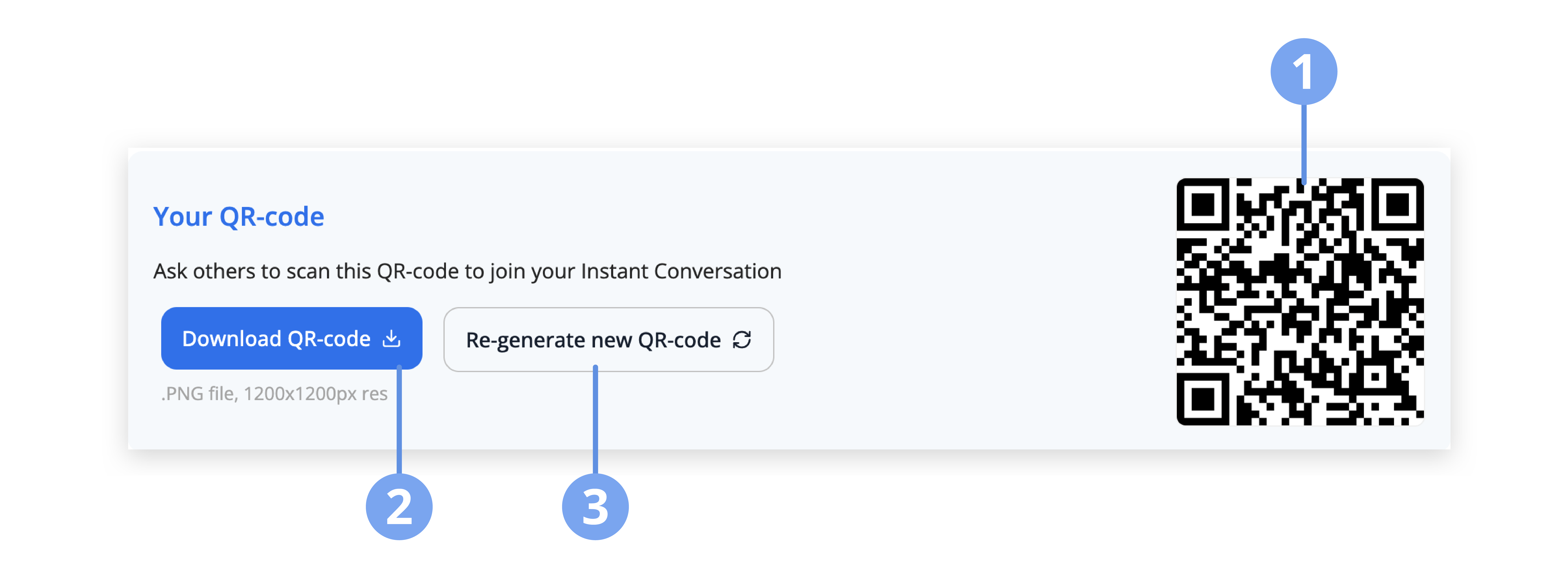
This section allows users to manage the QR code used to start instant conversations.
- Share the QR code for others to scan and join an Instant Conversation
- Download QR Code: Saves the QR code image to your device as a PNG file (1200 × 1200 px)
- Re-generate new QR Code: Creates a new QR code, which will invalidate the existing one
2. Advertisement
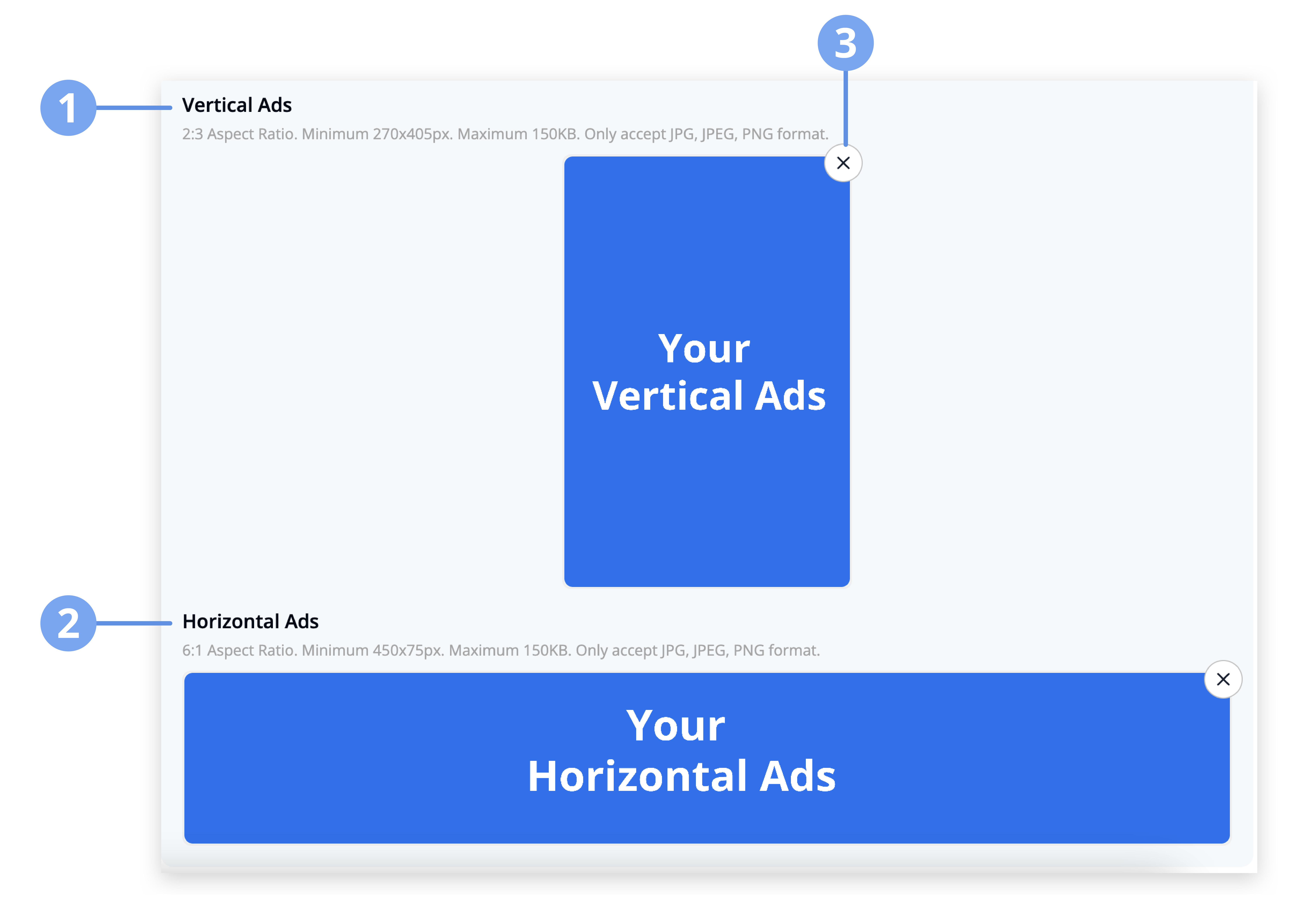
The Advertisement feature allows you to promote your business or introduce your company within Quick Dialogue conversations.
- Advertisements are displayed on the participant’s side during the conversation
- You can upload an advertisement image by dragging and dropping or clicking to upload
2.1 Vertical Ads
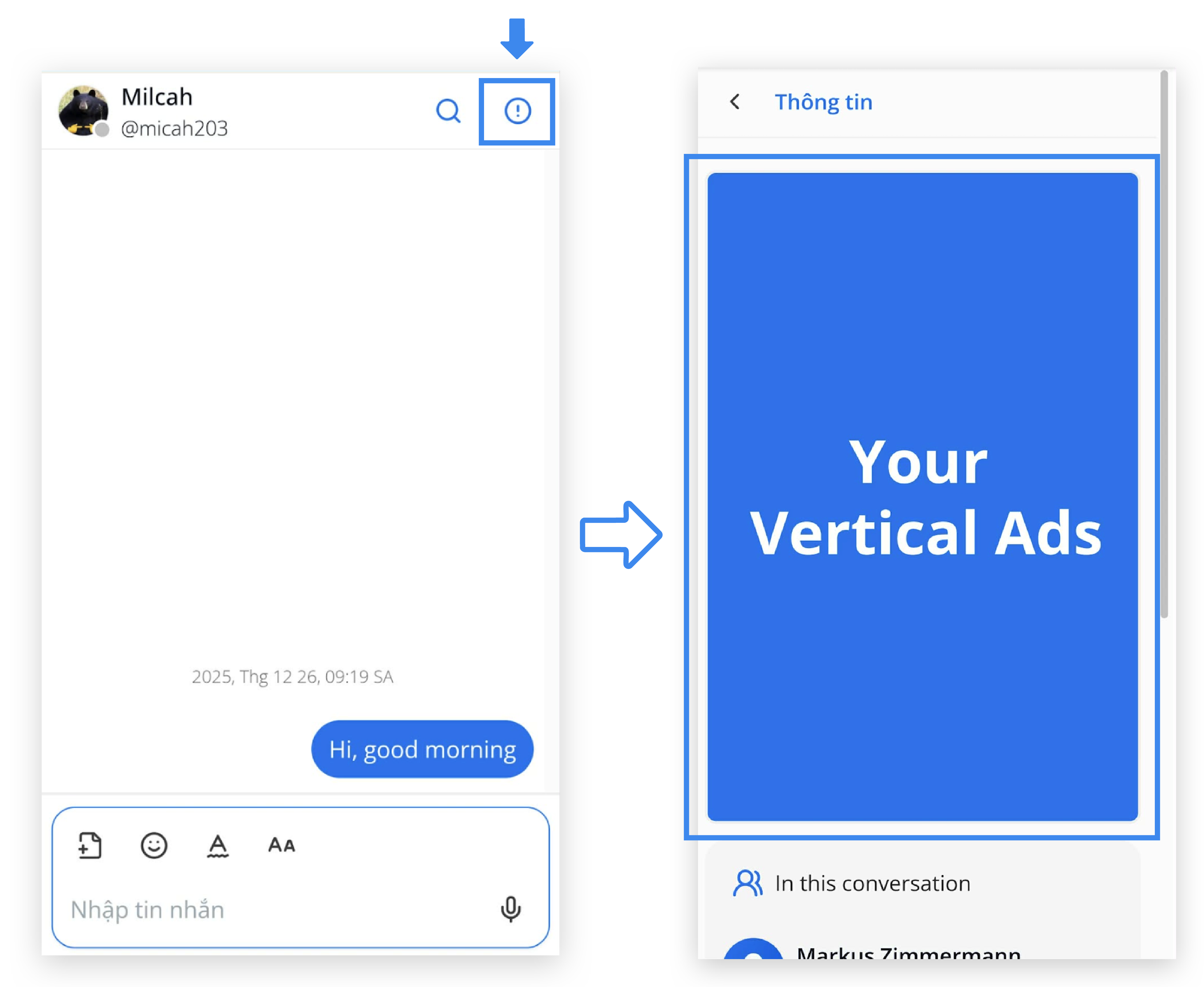
Vertical ads can be viewed by participants by tapping the (i) information icon during the conversation.
- Purpose: Detailed promotional content
- Aspect ratio: 2:3
- Minimum size: 270 × 405 px
- Maximum file size: 150 KB
- Supported formats: JPG, JPEG, PNG
2.2 Horizontal Ads
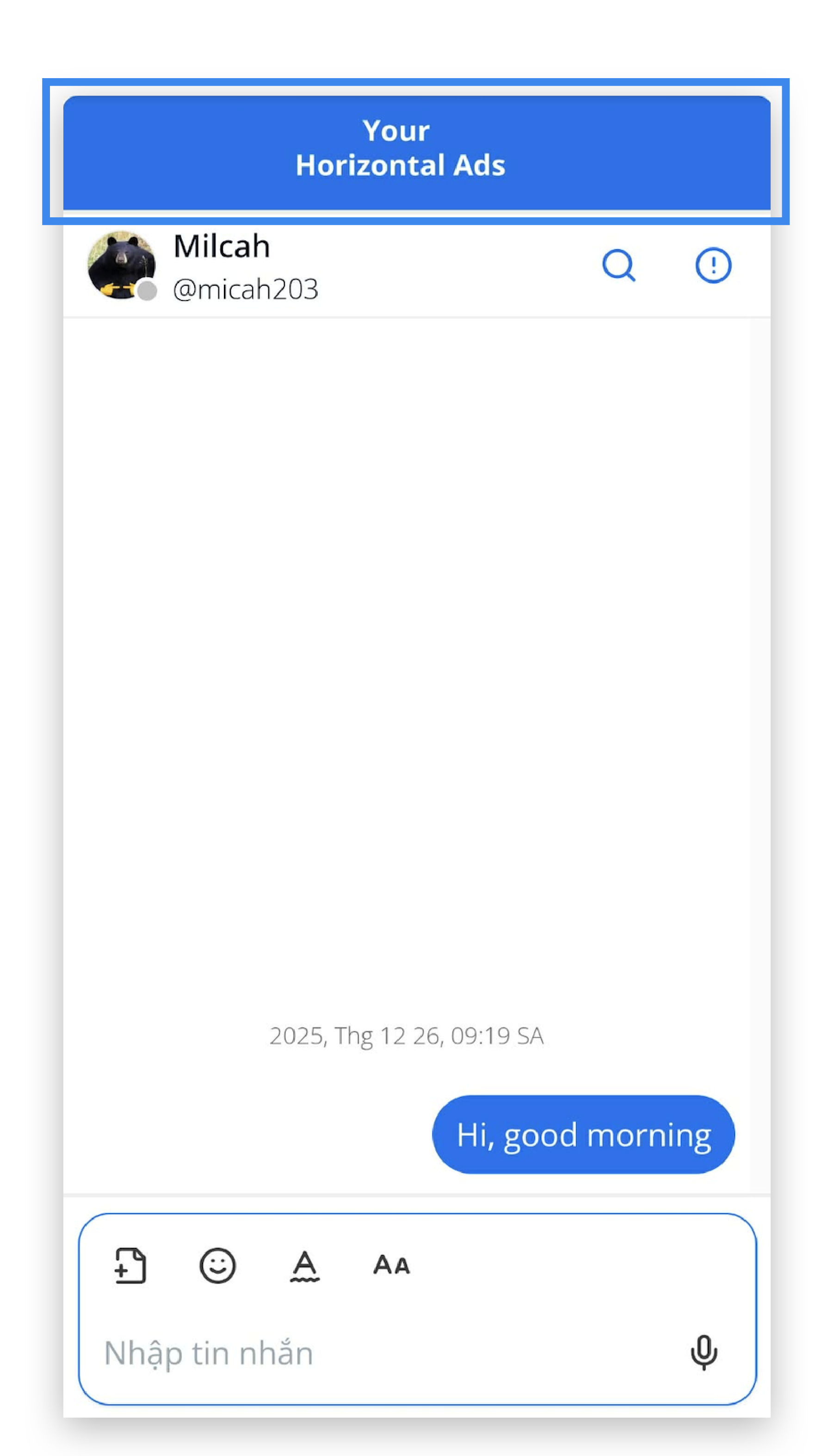
Horizontal ads are displayed at the top of the conversation when participants join via QR code.
- Purpose: Banner-style promotion
- Aspect ratio: 6:1
- Minimum size: 450 × 75 px
- Maximum file size: 150 KB
- Supported formats: JPG, JPEG, PNG
2.3 Remove Image
- Click the (x) icon to delete the image when you want to remove or replace it with another image